Visit https://app.upchieve.org/sign-up/volunteer/account to create a volunteer tutor account
Complete all onboarding steps before you can start tutoring
Note: All onboarding steps are located on the dashboard
Fill out a quick background information form
Upload a photo ID.
Acceptable forms of ID include a driver's license, passport, or student ID.
Full name, photo, and school name (if applicable) should be visible.
If your company partners with UPchieve your company has taken care of the photo ID step!
Read more about our photo ID guidelines here
Complete the UPchieve 101 coach training
Take the certification quiz on the topic you'd like to coach
Yes! There is no age limit to volunteer with UPchieve, but if you are a student, you must be in at least 9th grade or higher.
If you’re a high school student, please only tutor subjects you’ve already taken and feel confident in. Avoid tutoring subjects you haven’t studied yet, especially college counseling.
Yes! We need volunteers who live in different time zones to help us meet student demand. Right now, we need your help to tutor students early in the morning and late at night.
This is an unpaid, volunteer tutor position.
YES! Our volunteer tutors don't work in “shifts," so you’re never required to pick up a request if you're not available. You can check the dashboard whenever you have free time to see if any students could use your help!
YES! We hope to continue to offer more topics in the future. Please be on the lookout for messages from us when we launch new subjects to see if it's the ones you're looking for.
Unfortunately, we’re not able to accept volunteers who are currently participating in OPT training at this time.
Please email [email protected] to inquire. Our team will review your request and let you know if we’re able to accommodate your situation.
The majority of tutoring requests UPchieve gets are for help with a specific homework question or assignment. The average session lasts 45 minutes (or longer if you're available, as there's no session time-out!), during which you'll help the student improve their understanding and solve problems.
You cannot help students with exams or tests, but can help them with homework and to prep for tests/exams.
UPchieve's tutoring sessions aren't scheduled.
Students request help at any time during the day, which you can pick up if you're available.
There are two ways to pick up tutoring requests:
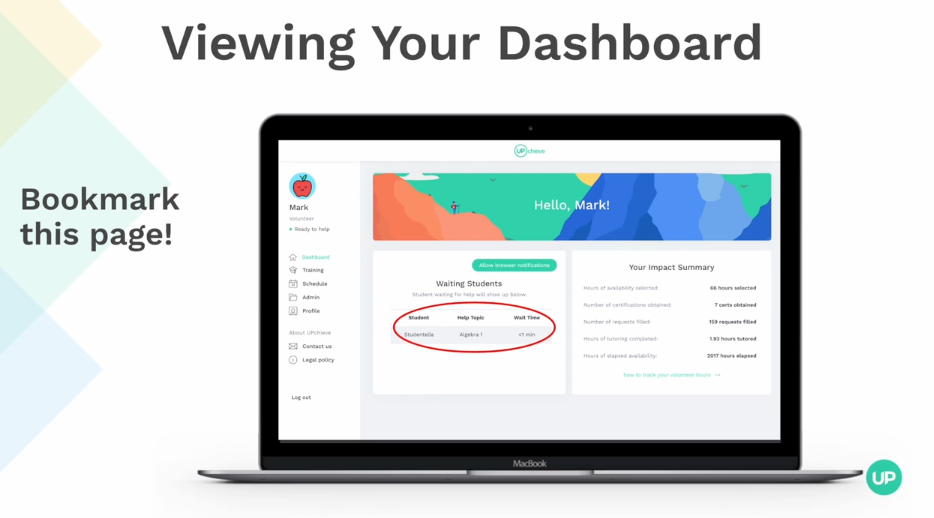
Check the waiting list on your dashboard to see if any students need help. Click on the student's name to start the session.
Tip: bookmark this page! https://app.upchieve.org/dashboard
Select the times want to get text messages when a student needs help. Each text will include the student’s name, subject, and a link to join the session. Click the link and log in on your computer for the best experience.
There will be a short delay between when a student requests help and when the text is sent, so it’s best not to rely on texts to pick up student requests
After you complete onboarding, you’ll see the student waiting list on your dashboard and start receiving text messages.
