Most tech issues can be resolved by refreshing the page and asking the student to do the same.
Examples of what to say to the student:
Sorry, I can’t see what you uploaded on the whiteboard.
I’m going to try to refresh–can you do the same, please?
Click this link to report a tech issue or use our chat widget (question mark ? bubble in the lower-left)

Please provide as much info as possible to help us understand the issue that occurred. Record your screen or take screenshots if possible!
Our tech team will respond within 48 business hours.
If the volunteer or the student don’t send at least one message in the chat, the session won’t be saved in session history.
Whiteboard and document edits also won’t appear in session history—only the final version will be shown.
Follow these steps:
Click on "Edit".
Update your phone number.
Click "Save" to confirm the changes.
If you have trouble verifying your phone number and are outside the U.S. and Canada, please note that local regulations may prevent us from sending text messages.
Follow these steps:
Click on "Edit".
Update your occupation.
Click "Save" to confirm the changes.
You'll need assistance from our staff to update your email address. Please send us a message and provide your full name, the email address that is currently in your UPchieve account, and the new email address.
Here are a few ways to delete or erase items on the whiteboard:
Erase everything: Click on the three dots and select the trash can to clear the whole whiteboard.
If you accidentally click on the trash icon and delete all the contents of the whiteboard, you can undo it by clicking the 'Undo' icon which looks like an arrow pointing left
Hide items: Use the eraser icon to drag a white marker over the parts you want to hide.
Delete specific items: Use the 'Pick' tool, click the item you want to delete, then press delete on your keyboard or click the red trash can icon that appears.
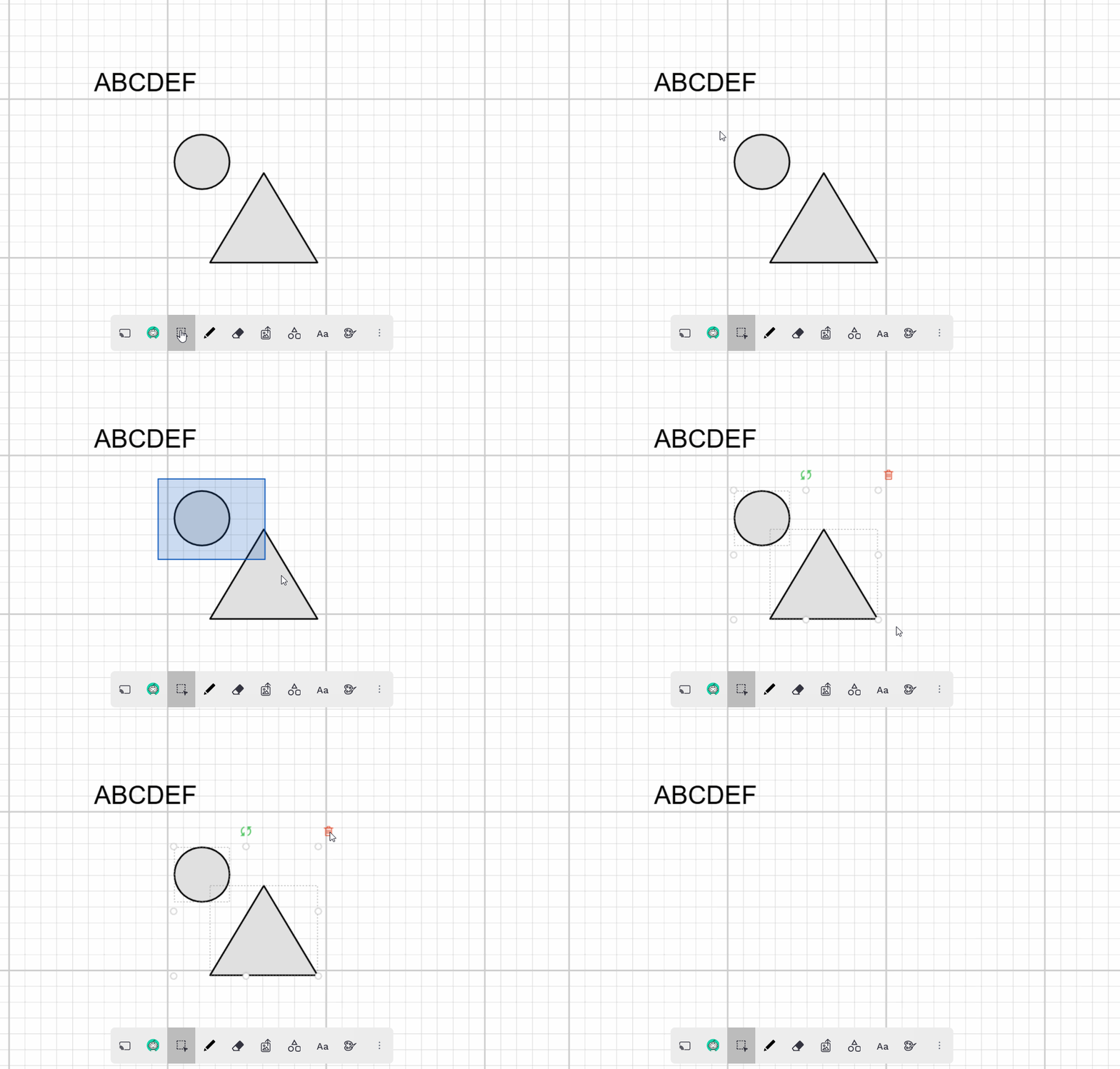
Students using the mobile app currently cannot copy text or links directly from the chat. We know this can be frustrating, and we plan to enable this feature in the future.
In the meantime, students can copy text by taking a screenshot of the chat and following these instructions:
iOS: Apple’s Live Text feature allows you to copy text from images. Open a screenshot in Photos, Safari, or Files, then tap and drag to select the text you want to copy.
Android: Google Lens can extract text from images. Open a screenshot in Google Photos or use the Camera app, tap the Lens icon, and select the text you want to copy. You can then copy it to the clipboard, search it on Google, or translate it into another language.
Please note, if you’re in a non-STEM session, you can paste text into the doc editor. Students can copy from there even on the mobile app.
The “away” status at the top of the chat doesn’t necessarily mean the student is away from UPchieve. They might be on another UPchieve screen or experiencing temporary tech issues.
It’s best to send a few messages in the chat to see what the student needs help with. If they don’t reply within 8–10 minutes, you can end the chat—but be sure to let them know they can request another session when they’re ready.
UPchieve’s Voice Chat lets you speak with your session partner using your microphone. To use it, your browser needs permission to access your mic. Here’s how to enable it:
Click the microphone button in the session chat to unmute yourself.
When your browser asks for permission, click “Allow.”
For the best experience, choose “Allow while visiting the site” (Chrome) or grant permanent permissions (Firefox) so you won’t be asked again.
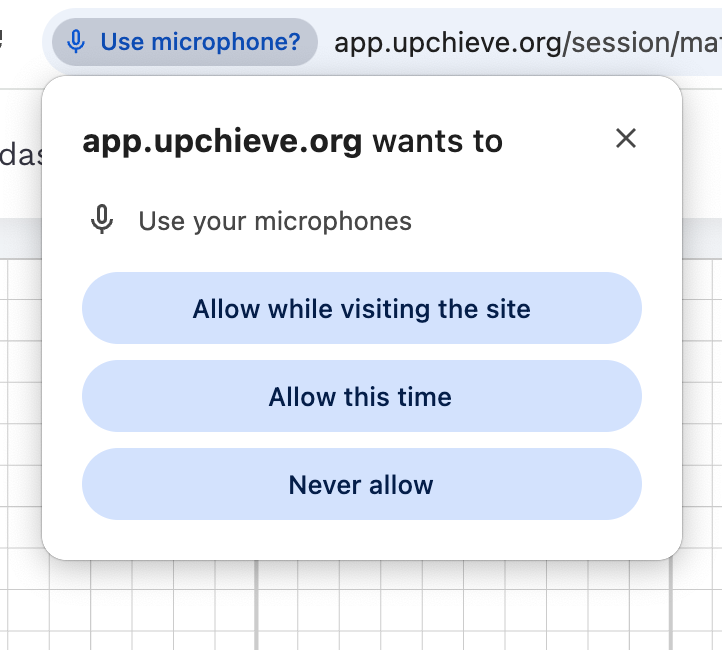
Important: Everyone joins sessions muted by default — even if you granted permissions before. You’ll need to click the mic button each time.
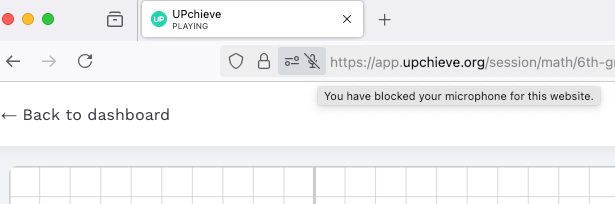
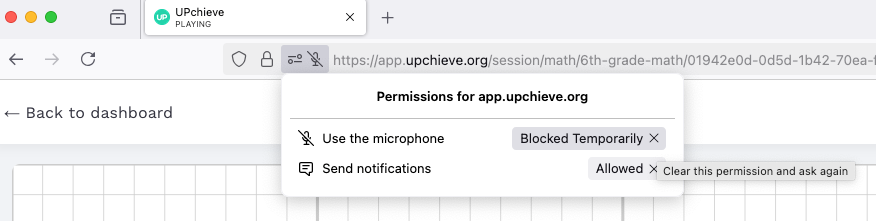
Firefox only grants temporary mic permissions by default, which means it may ask you every time you reload the page, or it may temporarily block your mic if you close the window without granting access.
To fix this: Go to your browser settings, search for microphone permissions, and set app.upchieve.org to “Allow” instead of “Always ask.” If the mic is temporarily blocked, click the microphone icon in the top-left corner of your browser to remove the block.
If your session partner says they can’t hear you, run through these checks:
Did you click the white microphone icon in the session to turn on your mic?
Did you grant browser permissions when prompted?
Is your mic working? If the icon turns red and your speech appears as a transcript, it’s working. If not, try granting permissions again.
If your mic is working but the other person still can’t hear you, it may be on their end:
They need to click the white speaker icon on your avatar to unmute you.
Their audio output device (headphones, speakers) may not be selected correctly.
Their volume may be too low or muted.
If a policy violation is detected with your mic use, your voice chat access may be revoked. You’ll see a notification in real time, and the mic icon will change to show you’ve been restricted.

You can learn more about our moderation here. If you believe this was an error, reach out to the UPchieve team to have your privileges restored.
