Please be extra welcoming and patient with new students. Some may just be exploring the platform and might not have any academic questions yet.
What to say:
“Hi [name], I’m [your name]. Nice to meet you!”
“No worries if you don’t have a specific question yet—we can figure it out together.”
“We can use chat, whiteboard, or voice chat—whatever works best for you.”
What to do:
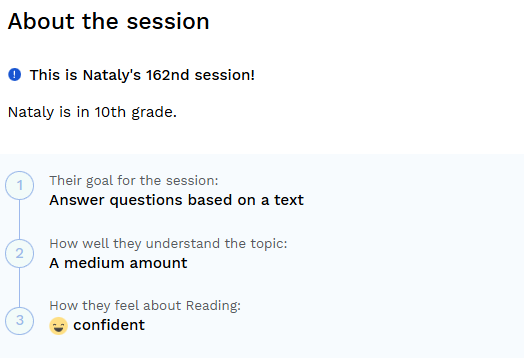
Check “About the session” link at the top of the chat. There you’ll see the student’s session count, grade, their goal for the session, how well they understand and how they feel about the topic.
Here’s an example of what you might see:
What to say:
“I see you’re working on [topic]—let’s take it step by step.”
Help students get “quick wins” early.
What to say:
“Let’s start with something simple—what is 4 + 5 inside the parentheses?”
“What do you think this problem is asking us to find?”
“Let’s start with something you already know from this topic.”
Keep students doing the thinking.
What to say:
“What do you think the next step is?”
“How did you get that answer?”
“What do you notice in this equation?”
“Can you explain that in your own words?”
This helps reduce stress and build rapport.
What to say:
“How’s your day going so far?”
“What class is this for?”
Focus on effort and thinking, not just correctness.
What to say:
“Nice work remembering that formula!”
“I like how you set that up.”
“That’s a really good first step.”
“So far so good—you got that step exactly right.”
“Kevin, it makes me happy to see your effort!”
Treat errors as part of learning.
What to say:
“That’s okay—mistakes help us figure out the next step.”
“You’re close, let’s take another look together.”
“Not quite, but your setup is really good—let’s adjust this part.”
“Let’s slow it down and go step by step.”
Reinforce progress and prevent drop-off.
What to say:
“You’re on the right track.”
“So far, you’ve done this part correctly.”
“Let’s build on what you just did.”
“Nice—now we just need the next step.”
These trainings go deeper into engagement skills:
Conversation Blockers 🚧 – avoid common messaging mistakes that reduce student engagement. Check out the recording and presentation
Increase Student Engagement 👨🎓 – strategies to keep students involved and motivated. Check out the recording
Giving Effective Praise – how to make feedback more meaningful. Take the training now!
Responding to Student Errors ❌ – turning mistakes into learning opportunities. Take the training today
Growth Mindset 🧠 – helping students build confidence and persistence. Check out the recording
Overcome Barriers to Learning ❤ – understanding emotional and social challenges. Check out the recording
Maximize Student Learning 📚 – shifting responsibility to the student. Check out the recording
Learning What Students Know 🤔 – understanding what students already know. Learn more now
Check out our training material for sample problems, topics, and resources to discuss with your student
Why this happens
Students may have gaps in prior knowledge because they haven’t had equal access to learning resources. They may also be learning something new or more advanced (like college applications or new concepts)
What to do
Tell the student you may need to review a concept first
Set expectations that it might take a little longer, but they can still succeed
Quickly review the missing foundational skill
Keep the focus on completing their goal
Encourage and celebrate progress along the way
What to say
“To solve this, we’ll need to review multiplying exponents first. Let’s go over that quickly and then come back to the problem.”
“We might need to review a quick concept before we continue, but you’ve got this.”
“This may take a bit longer since we’re building up a foundation, but we’ll work through it together.”
“Nice—now that we’ve got that down, let’s apply it to your problem.”
What to do:
Stay calm
Ask the student for a few minutes to look at the assignment/task
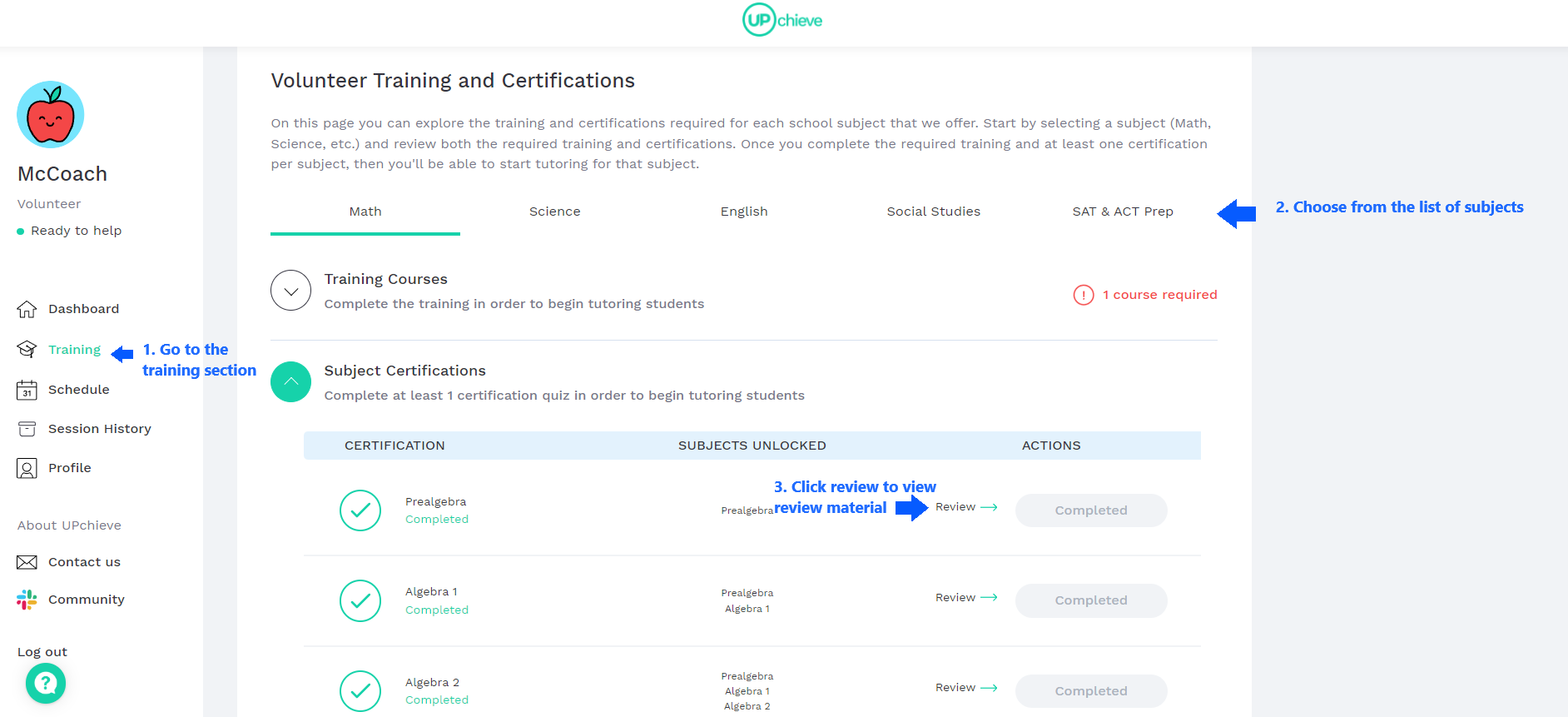
Check UPchieve's resources. We have materials for different subjects that can help you quickly get up to speed.
Do a quick Google search. Websites like Khan Academy often have excellent content.
If you’re really unsure, simply encourage them to make another request.
Bonus points if you share links to reputable sites that explain the topic. This way, the student can still get help while waiting for another coach
What to say:
🧭 If you need time to think or review:
“Give me just a moment to think through this.”
🔄 If you’re not confident with the topic:
“I’m sorry, it’s been a while since I’ve worked with this topic, so I may not be the best coach to help right now. Please submit another request to be paired with a coach who can support you.”
👉 You can also add:
“While you wait, feel free to check out <link>.”
What to do:
If you’re able to help, go for it!
If not, simply let the student know to request a session in the right subject.
If the subject is not available on our platform, suggest checking out reputable sites such as Khan Academy.
What to say:
Hm…I’m not certified in <topic> but I can try to help.
Sorry I don’t know that <topic> feel free to make a request under <right topic> to get connected with a coach who knows this topic!
<Topic> isn't available on the platform, so I suggest checking out this website <link>
What to do:
Do it, but if the answer is incorrect, don’t provide the right answers. Help them learn how to get to the right answer.
What to say:
#1 is correct, good effort on #2. Can you share with me your first step for that problem?
If a student isn’t responding, they may be having connection issues. Many students also have limited internet access, unreliable devices, or may be new and nervous about using the platform.
What to do:
Don’t wait more than 10 minutes for a response. If you’ve reached out a few times and still haven’t heard back, feel free to end the session and help other students.
The student can request a new session anytime they’re ready.
What to say:
“Hi Mark, are you able to see this message? If so, let me know if you need more time to think or write notes.“
“Seems like we might be having trouble connecting, so I’m going to end the session. Feel free to make another request!“
Please only pick up sessions if you have 30 minutes to help the student. However, if you need to leave unexpectedly:
What to do:
Apologize and let the student know you have to go
Encourage them to make another request
What to say:
Something came up and I have to leave. Sorry about this. You can request another coach on the dashboard to help you.
What to do:
Be direct and firm
Cite that this is against UPchieve policy, which aims to foster learning and academic integrity.
Encourage the student to engage in problem-solving and understanding the concepts.
Let UPchieve know through the post-session feedback form
What to say:
I can't complete the homework for you. I'm here to help you understand the concepts and guide you through the steps
UPchieve doesn’t allow us to provide answers but I can help you solve it step-by-step and explain the process so you can learn.
When external links are okay
Students should ideally use the UPchieve chat, whiteboard, or document editor.
If needed, you may open:
Google Docs or any other Google suite tools (view-only)
Reputable educational websites
⚠ Important guideline: Keep communication on the UPchieve platform whenever possible. We can’t monitor external sites, so staying on-platform helps ensure safety and support.
📄 Using Google Docs (view-only access)
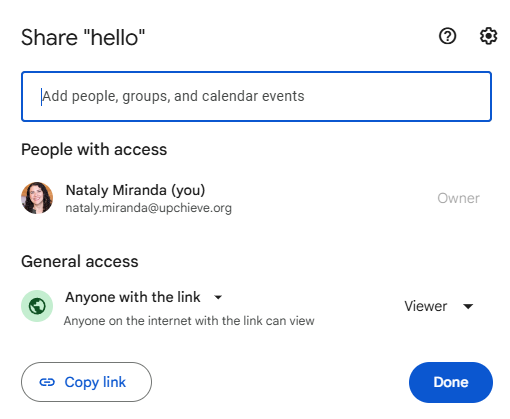
If a student shares a Google Doc make sure it is set to view-only access:
Go to Google Drive
Select the file → Click “Share”
Under “General access,” choose Anyone with the link
Set role to Viewer
Copy and share the link
👉 If the student has trouble, guide them through these steps.
It should look like this:
📄 College Personal Statement
The personal statement is perhaps the most mystical part of the college application process. Students often approach it with a lot of questions and anxiety: How do I pick the right topic? What am I supposed to say? What do they really want from me? College essay specialist, Catherine Andre led a workshop to discuss how to answer these questions and more. She walked through a sample personal statement brainstorming session and answers common questions about how to approach the personal statement and the college application process overall. Check out the recording and presentation! Host: Catherine Andre, Forum College Counselor
Check out our plug and play work worksheets and templates to drop into your virtual classroom!
📝 Strengthening Essays
Check out our plug and play resources in our Session Helper website. From ready-to-go outline templates to quick responses to the most common questions, we've got you covered!
We suggest refraining from using this resource in this way. Many teachers now run student essays through AI that will be able to tell if AI was used in writing the response, this will result in the student receiving a failing grade...or worse. Additionally, providing written answers instead of using questions to help the student develop their writing won't help the student in the long run.
Instead please use one of the resources on our platform to help the student develop as a writer!
Essay Planning review guide and Essay Feedback review guide. These are great resources for helping students in the planning, drafting, revision, and editing stages of writing.
The Essay Session Helper will provide guidance on how to respond to the most common help requests.
You can ask your student to assess their own work by copying & pasting our student revision checklist into the document editor
Many high school students in Advance Placement history classes will need help with a specific type of essay: Document-Based Question or DBQ. [Examples]
Key Features of a DBQ:
Students are presented with 7 documents offering various perspectives on a historical development or process.
Students assess these written, quantitative, or visual materials as historical evidence.
Students develop an argument supported by an analysis of historical evidence.
The document-based question focuses on topics from 1754 to 1980.
Structure of a DBQ Essay:
Introduction: Includes a thesis statement that directly answers the prompt.
Body Paragraphs: Analyze the provided documents, group them by themes or arguments, and use evidence from the documents to support the thesis.
Outside Evidence: Often requires incorporating additional knowledge beyond the documents to strengthen the essay.
Conclusion: Restates the thesis and summarizes the argument.
Grading Criteria: DBQs are typically scored using a rubric that evaluates…
Thesis and argument development.
Use of documents to support the argument.
Historical analysis and reasoning.
Contextualization and use of outside information.
Check out this workshop for tutors who can solve any trigonometry problem but have never been trained in the strategies most commonly used by test prep math coaches. Seasoned test prep educator Sara Rahman will walk UPchieve volunteers through a general approach to coaching SAT and ACT math, sharing her go-to tools and resources for teaching essential content as well as best practices for creating an effective tutoring session with limited time. Check out the recording and presentation! Host: Sara Rahman, Forum SAT, ACT, ISEE Tutor
If you’re not familiar with the U.S. college application process, we recommend focusing on other subjects where you feel confident. For college counseling requests, students are best supported by volunteers who have experience with the U.S. college system.
At UPchieve, we are aware of the unique needs of the students we serve. We have compiled a list of Google Extensions that makes UPchieve accessible to the variable needs of your learners.
For students with speech to text or scribe accommodations
How to Use:
Add Speech to Text extension to Google Chrome browser
Allow chrome access to microphone
State what you need
Ctrl + C (Command + C) to copy what is populated
Ctrl + V (Command + V) to paste the text into the chat box
For students with human reader or text to speech accommodations
How to Use:
Add Read Aloud extension to Google Chrome browser
Highlight text on screen that you want read aloud
Click Read Aloud from extensions drop down
A new box will appear on the screen that will magnify the text and read it aloud.
Functionality to pause, stop, and rewind is available
For students with English as a second language
How to Use:
Add Google Translate extension to Google Chrome browser
Click “Extension Options” and select primary language from the dropdown
Highlight text on screen that you want to translate and click the extension (it will automatically translate there)
OR Click the extension and open a larger browser directly on the Google Translate page
Copy and paste English translation into the chat to communicate with coach
For students with print / visual modifications
How to Use:
Add Open Dyslexic extension to Google Chrome browser
Select from the drop down your text/visual preference
For students who require the enlargement of text
How to Use:
Add Magnifying Glass extension to Google Chrome browser
Hover over features you wish to enlarge on the screen
Click anywhere on the screen to stop magnifying glass
For students with color blindness
How to Use:
Add Change Color extension to Google Chrome browser
Answer the 2 prompts for color adjustment
Enable the feature
Move the scale to intensify color clarity
*Remember to turn the extensions off after use if you do not want all of your browsers to appear with the same modification.
