Our platform was designed for easy use! You and your student will meet 1:1 in our virtual classroom where you'll collaborate on a whiteboard or document editor and communicate via the text-based chat or optional voice chat.
For student safety and preference, UPchieve does not use video.
UPchieve offers a live voice chat feature, allowing users to communicate in real-time. Using voice chat is completely optional, and it is possible for just one user to use it as all messages are transcribed in the chat as well.
Watch this video to learn more:
You can read more about voice chat and troubleshooting here.
STEM sessions (Science and Math): You’ll have access to a whiteboard—a grid-based canvas where you can use tools like text boxes, markers/pens, and shapes to work through problems step by step.
Non-STEM sessions (subjects like English, social studies, and college counseling): You’ll have access to a document editor—a blank page where you can type, highlight text, adjust font size, and more for reading and writing support.
Both tools are shared in real time, so both you and the student can edit and see changes instantly.
Both the whiteboard and document editor allow you to upload images.
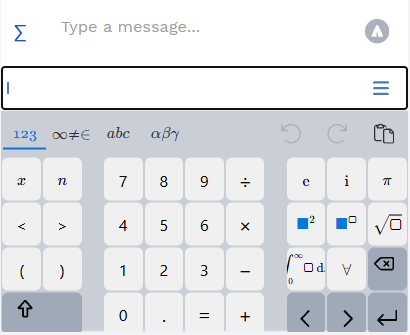
Math keyboard now available for all coaches and students in math sessions!
Add equations, fractions, exponents, and symbols directly in chat with clean formatting
Click the ∑ button in the chat toolbar to test it
No more spelling out math problems in plain text!
You and the student can upload images.
Supported formats: JPEG, PNG, GIF (no animation), BMP, and HEIC.
Just click the image upload button in the toolbar to start

We’re gradually rolling out screen sharing to all users. You’ll know it’s available in your session if you see the screen sharing icon in the toolbar.

When available, screen sharing allows you to:
Share your screen with the student to better explain concepts or walk through problems
View the student’s screen (if they choose to share it) to provide more targeted support
Work through documents, problems, or online materials together in real time
Note: Screen sharing may not be available in all sessions yet as we continue the rollout.
What it is
UPbot is our AI assistant that you and the student can access during a session.
It can help support learning by:
Generating practice problems
Offering alternative explanations
Assisting across all subjects available on UPchieve
UPbot is designed to support student learning—not replace tutoring—so it works best as a supplement to your guidance.
Please note, these demos don’t include new features such as voice chat, screen share, UPbot and uploading images.
If a student is using a mobile device (since UPchieve has a student mobile app but not a coach app), they won’t be able to use voice chat or screen sharing.
Any personal computer, laptop, or tablet will work just fine with our online tutoring platform.
Since UPchieve doesn’t have a video component, you won’t need a video camera.
Although UPchieve does offer an optional voice chat feature, about 90% of UPchieve’s tutoring sessions are text-only. You don’t need to buy a microphone or speaker to hear the student—voice chat is automatically transcribed in the chat window.
You also don’t need any special equipment like a touch screen or stylus to use the whiteboard; a good, old-fashioned mouse or trackpad will work great!
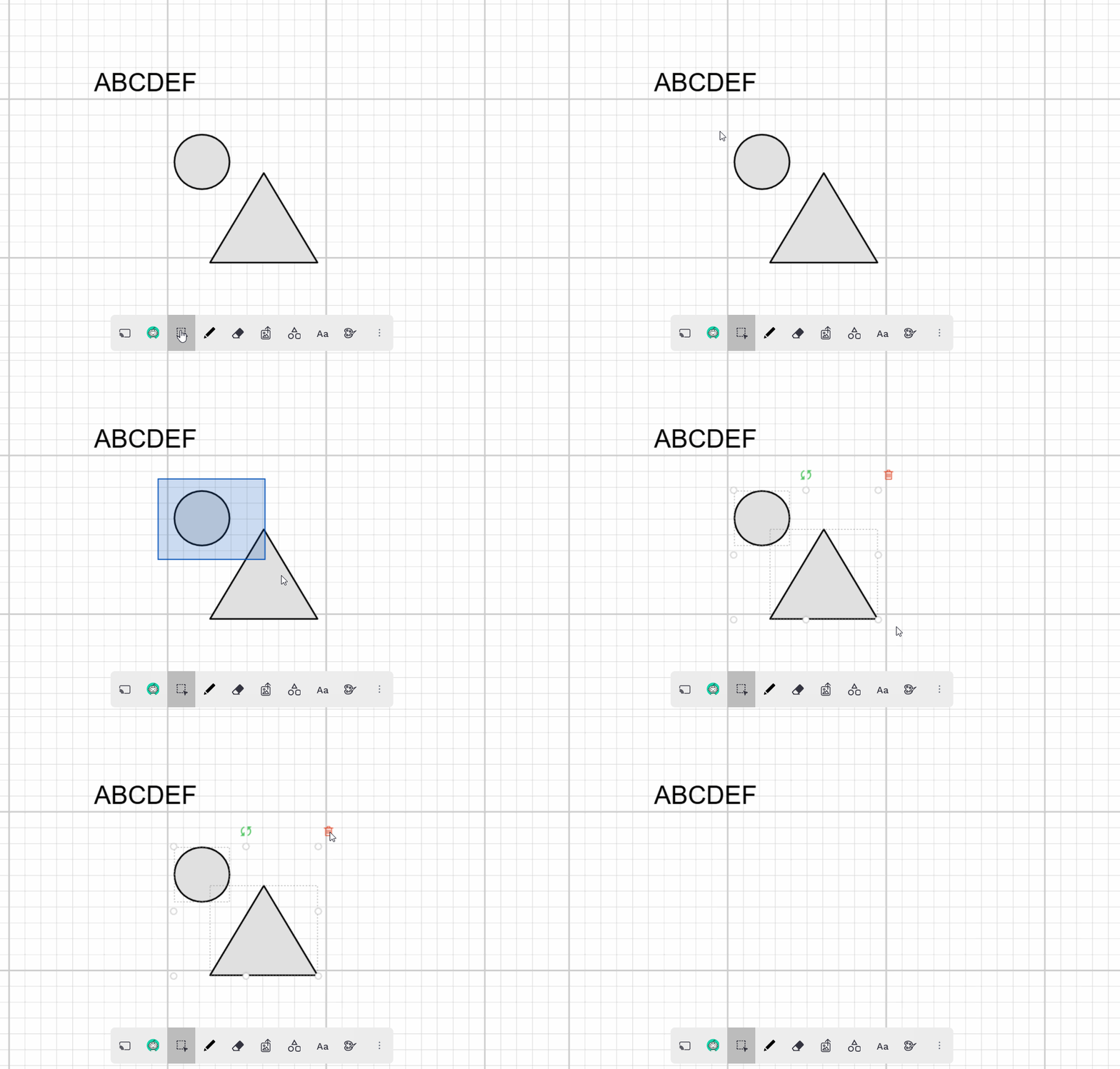
Here are a few ways to delete or erase items on the whiteboard:
Erase everything: Click on the three dots and select the trash can to clear the whole whiteboard.
If you accidentally click on the trash icon and delete all the contents of the whiteboard, you can undo it by clicking the 'Undo' icon which looks like an arrow pointing left
Hide items: Use the eraser icon to drag a white marker over the parts you want to hide.
Delete specific items: Use the 'Pick' tool, click the item you want to delete, then press delete on your keyboard or click the red trash can icon that appears.
After a UPchieve session, both Coaches and students can send 1:1 direct messages to continue supporting learning through resources, encouragement, or follow-up questions about homework and tests.
Go to Session History
Find the session and student you want to message, then click Session Recap
At the bottom of Session Chat, type your message
The student will receive a notification by email and will also see a new message indicator in Session History.
When they reply, you’ll receive an email and in-app notification and can continue the conversation. You can also filter Session History to show only sessions with unread messages, making it easy to find new conversations.
All messages are monitored by staff and AI to ensure a safe and respectful environment.
Coaches use DMs to share resources, build confidence, follow up on student progress, and provide extra practice, and they can also coordinate follow-up sessions when needed.
DMs are best for quick, non-urgent support, while more complex or urgent help should be handled in a live session.
This is the primary way to pick up requests
When a student requests a session, their name and the subject they need help with will appear on the dashboard. If you're available, simply click on the student’s name or the “Join session” button in the popup to accept.
Yes, you can accept requests outside of the availability you set!
The screenshot below shows an example of what your dashboard will look like when a student requests a session.
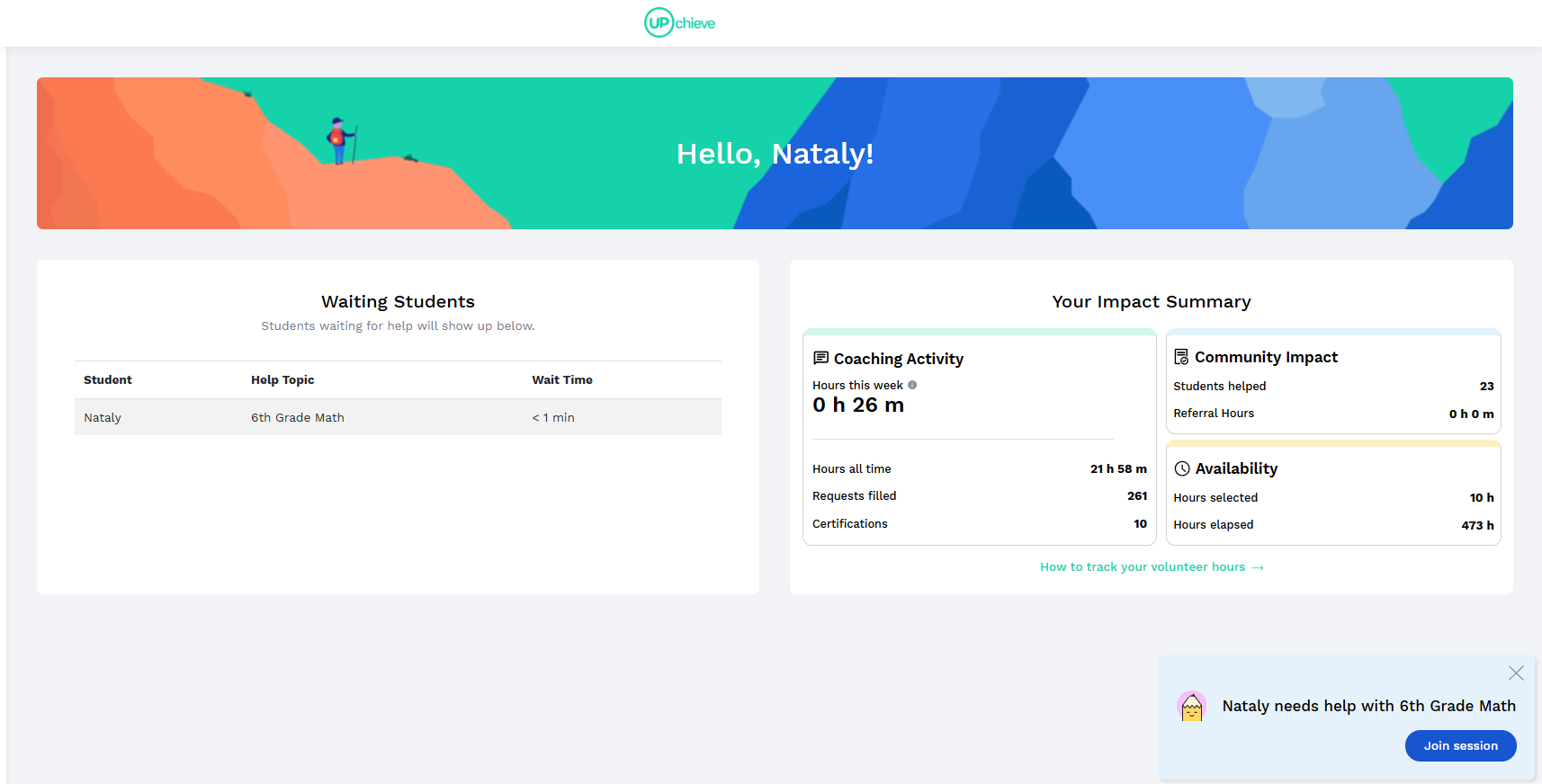
Please note, clicking on the request takes you directly to the live session.
How they work:
When no coach is available on the dashboard, UPchieve sends a text to coaches who are marked as available (you set your availability on the schedule page).
You won’t get a text for every request—we only notify specific coaches, so messages won’t be constant.
Picking up requests via a text:
If you get a text, you can join the session right away from your phone by clicking the link. We recommend greeting the student there, then switching to your computer when possible for a better experience.
You can say something like “Hi there! Please give me a moment while I turn on my computer. I’ll be with you shortly”
You can return to the session anytime on your computer by clicking “Return to chat” in the top right of the dashboard.
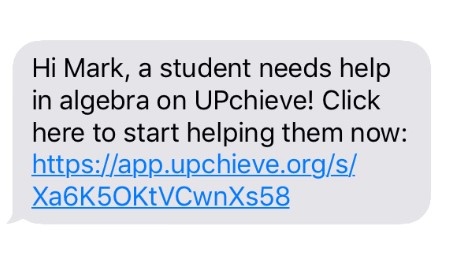
Here’s an example of what the text message will look like:
You can toggle browser notifications in the profile section to hear a ping when a student needs help!
Currently, only SMS text notifications are available.
We text multiple volunteers when a student makes a request, and often what happens is that another volunteer either picks up the request before you, or the student ends the session quickly.
UPchieve is an on-demand service, so the number of requests you receive can vary. Here are some tips to increase your chances of working with a student:
✅ Unlock more subjects – The more subjects you can tutor, the more requests you'll receive.
📚 Need ideas for what subjects to certify in next? You can now see all student requests in real time on your dashboard, even for subjects you haven’t unlocked yet. This gives you an idea of what students are asking for help with when you’re typically online.
Click on a locked request (you'll see a 🔒) to take that subject’s quiz. Pass the quiz and you can start helping more students right away!
✅ Keep the dashboard open – Requests appear in real time, so keeping your dashboard open helps you catch them as they pop up. You can also enable browser notifications to hear a ping when a request comes in.
✅ Sign Up for Texts and add more availability on your UPchieve calendar – This allows you to receive text notifications when students need help.
Look for red ⏰ icons—these indicate the busiest hours!
Each text includes the student’s name, subject, and a link to join. Simply click the link, let the student know you’ll be with them shortly, and switch to your computer to begin.
Note: blocking time on your calendar only enables text notifications during those hours. It doesn’t limit when you can tutor and students can’t see your availability.
There’s typically less competition for sessions from 10pm to 9am ET
School is out! Students are too! What you can do to make an impact.
With many kids out of school, there are fewer tutoring requests. But don't fret! You can still work with students who need help over the summer by getting certified in more subjects
You can also prep for the new school year by boosting your coaching skills! Check out some of our past workshops and interactive asynchronous trainings. Explore ways to help students overcome learning barriers, maximize engagement, and master effective coaching strategies.
Gain valuable insights and practical tips from experienced educators in our training webinars. Explore topics ranging from communication to boosting engagement and navigating college applications.
Our platform doesn't currently offer scheduling, but here are some ways you can work with a student again:
Agree on a time to log onto the platform so you can pick up the student's request
Send them a direct message through UPchieve (click session history, find the student's name, click session recap, and type in the chat) when you're online and ready to pick up their session
OR let the student know that they can favorite you so you can be the first to be notified via text (if you are available) the next time they request a session.
If you'd like to receive text notifications when a student needs help, set your availability on the Schedule page. Select your time zone, choose your available time slots, and click save. Your chosen slots will be highlighted in turquoise.
You’re not obligated to tutor every time we text you, but please try to pick times when you can help to help.
You can update your availability anytime.
Scheduled times may not save correctly for users in non-DST time zones. Time slots may shift by 1 hour after saving or refreshing.
Example: If you are actually available at 1 PM, select 2 PM instead when setting your schedule. After saving and refreshing, it should display correctly as 1 PM.
Workaround: Select your availability 1 hour later than your actual time.
Countries/regions that do NOT observe DST:
Arizona (United States)
Hawaii (United States)
China
India
Japan
South Korea
Indonesia
Singapore
Malaysia
Most African countries
Most South American countries (with some exceptions)
To tutor a subject, you’ll need to pass a short quiz that checks your understanding of the basics. You’ll find those subjects in the Training section. Once you pass, you’ll be able to accept requests for that subject.
Start with subjects you feel comfortable with and confident in.
If you’re a high school student, only select subjects you’ve already covered in school. Avoid choosing subjects you haven’t learned yet.
You can review our training materials for each subject. These resources cover the key concepts you’ll need and are a great way to refresh your understanding before taking a quiz or tutoring.
If you’re not familiar with the U.S. college application process, we recommend focusing on other subjects where you feel more confident.
College counseling requests are best supported by volunteers who have experience with the U.S. college system.
Volunteers and students have access to previous sessions. To access them, go to Session History
Please note:
If neither the volunteer nor the student sends at least one message in the chat, the session won’t be saved in session history.
Whiteboard and document edits also won’t appear in session history—only the final version will be shown.
